
Appointments
Book walk-ins, phone calls and online requests, run the day's serial, check patients in, open the doctor's visit and handle no-shows.
Appointments is the clinic's serial for the day. Every booking (walk-in, phone call or online request) gets a serial number and a token, and every computer in the clinic sees the same list. This is also where the doctor opens a patient's visit and writes the notes.
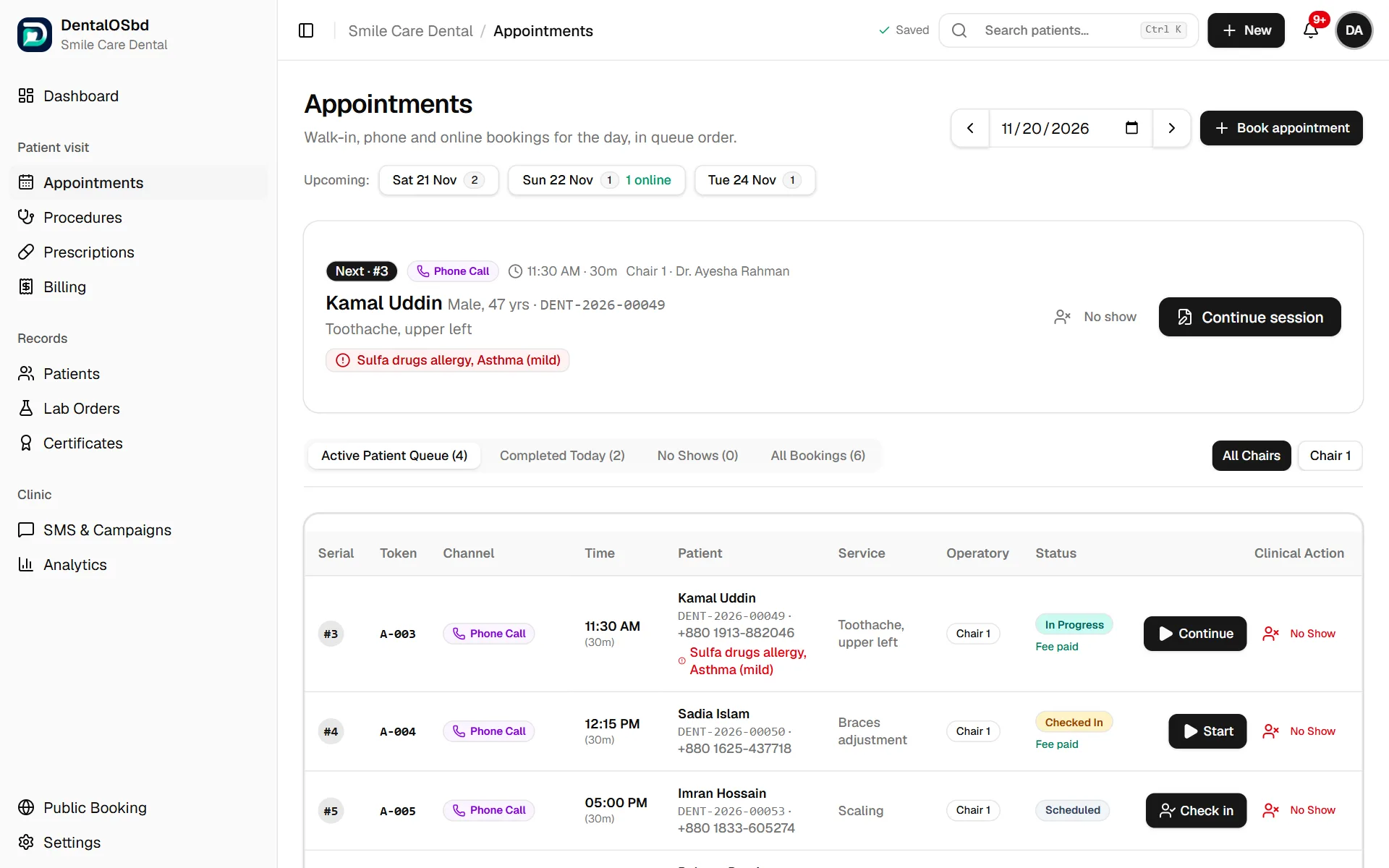
Reading the screen
- Upcoming: the next few days with bookings, and how many came in online.
- Next: the patient who is next in the serial, with their alerts, and a button to start or continue their visit.
- The tabs: Active Patient Queue, Completed Today, No Shows and All Bookings.
- All Chairs: show only one chair's patients.
- Each row shows the serial, token, how they booked (Channel), time, patient, reason, chair, Status, and the next action.
Book a patient
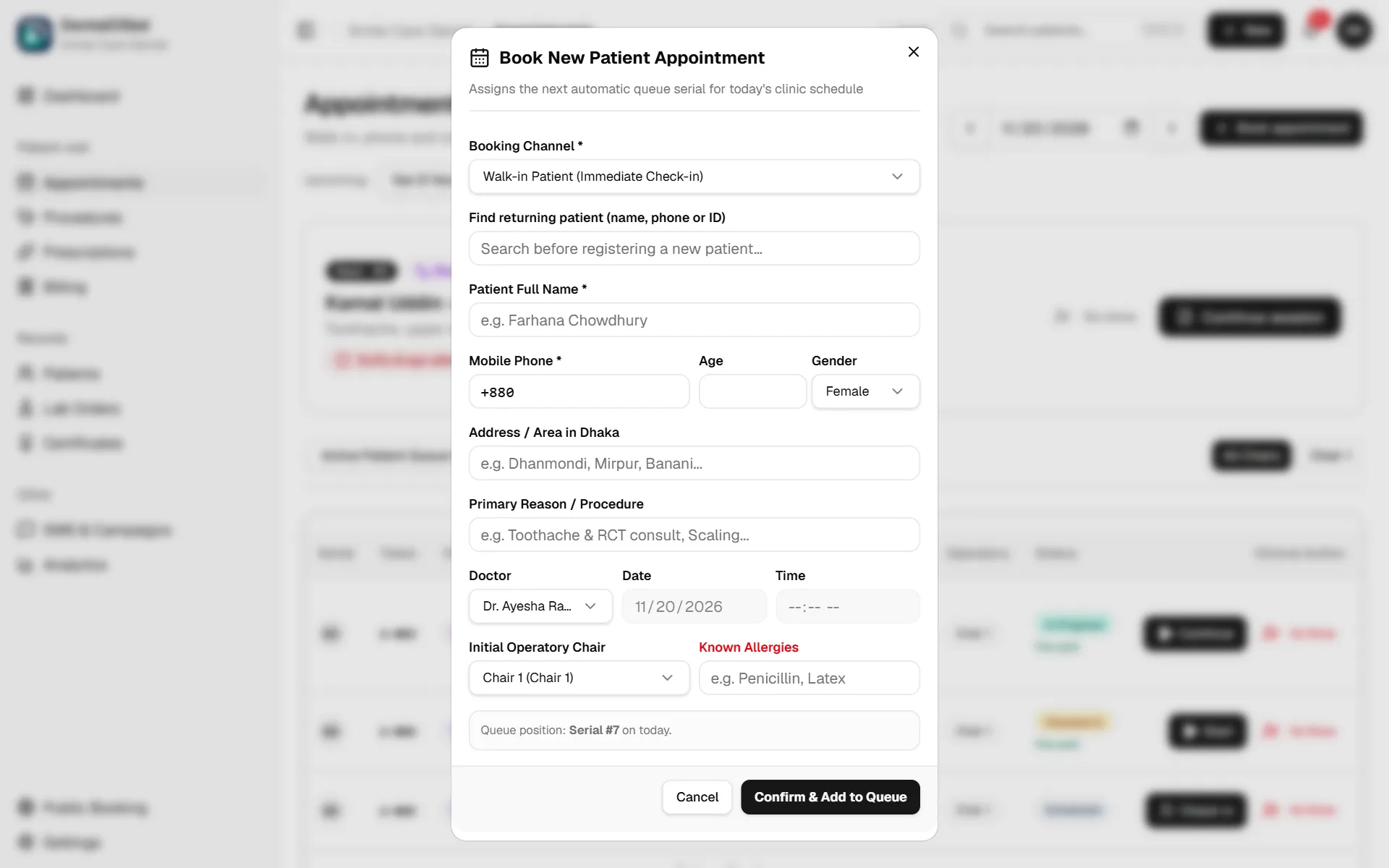
- Click Book appointment.
- Choose the Booking Channel: walk-in, phone call and so on. A walk-in is checked in straight away.
- For a returning patient, type their name, phone or ID in Find returning patient and pick them. Their details fill in. For a new patient, type the Patient Full Name and Mobile Phone (both needed), and age, gender and area if you have them.
- Write the Primary Reason / Procedure, for example "Toothache, lower left".
- Choose the Doctor, Date, Time and Chair. The next free time for that doctor is suggested, within your opening hours and outside the lunch break.
- Add Known Allergies if the patient tells you about any.
- Click Confirm & Add to Queue. The screen shows the patient's serial number.
Tip: Always search for a returning patient first. Registering someone twice splits their history across two files.
Check a patient in
When the patient arrives:
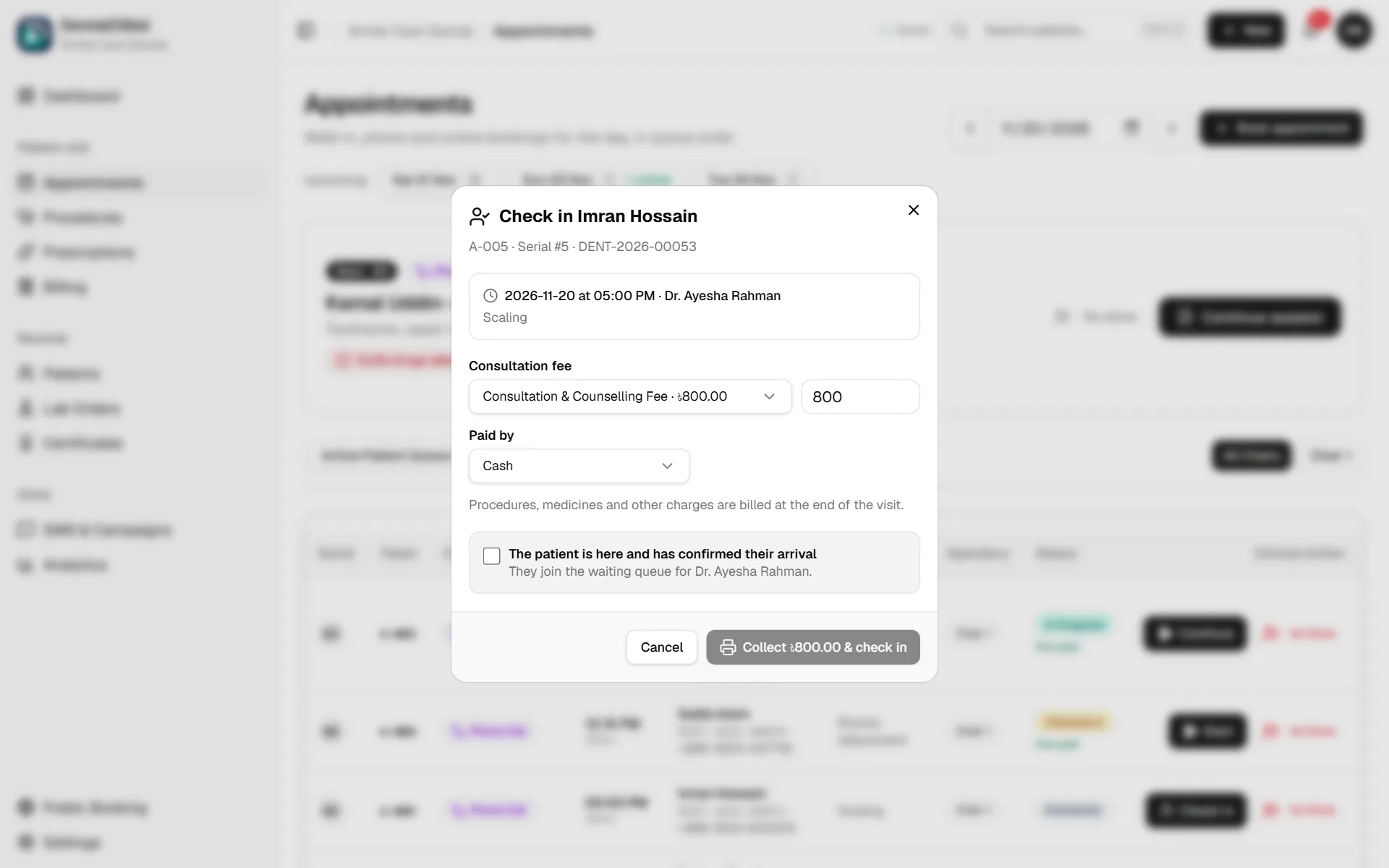
- Find them in the Active Patient Queue and click Check in.
- If your clinic collects the consultation fee at check-in, the fee is shown. Choose how they paid (Cash, bKash, Nagad or card).
- Click Collect … & check in. The patient gets a receipt and joins the doctor's waiting list as Checked In.
Whether the fee is taken at check-in or at the end is set in Settings → Procedures & Fees (see Lists & forms).
Start the visit (doctors)
- Click Start on a checked-in patient (or Continue if the visit has already begun).
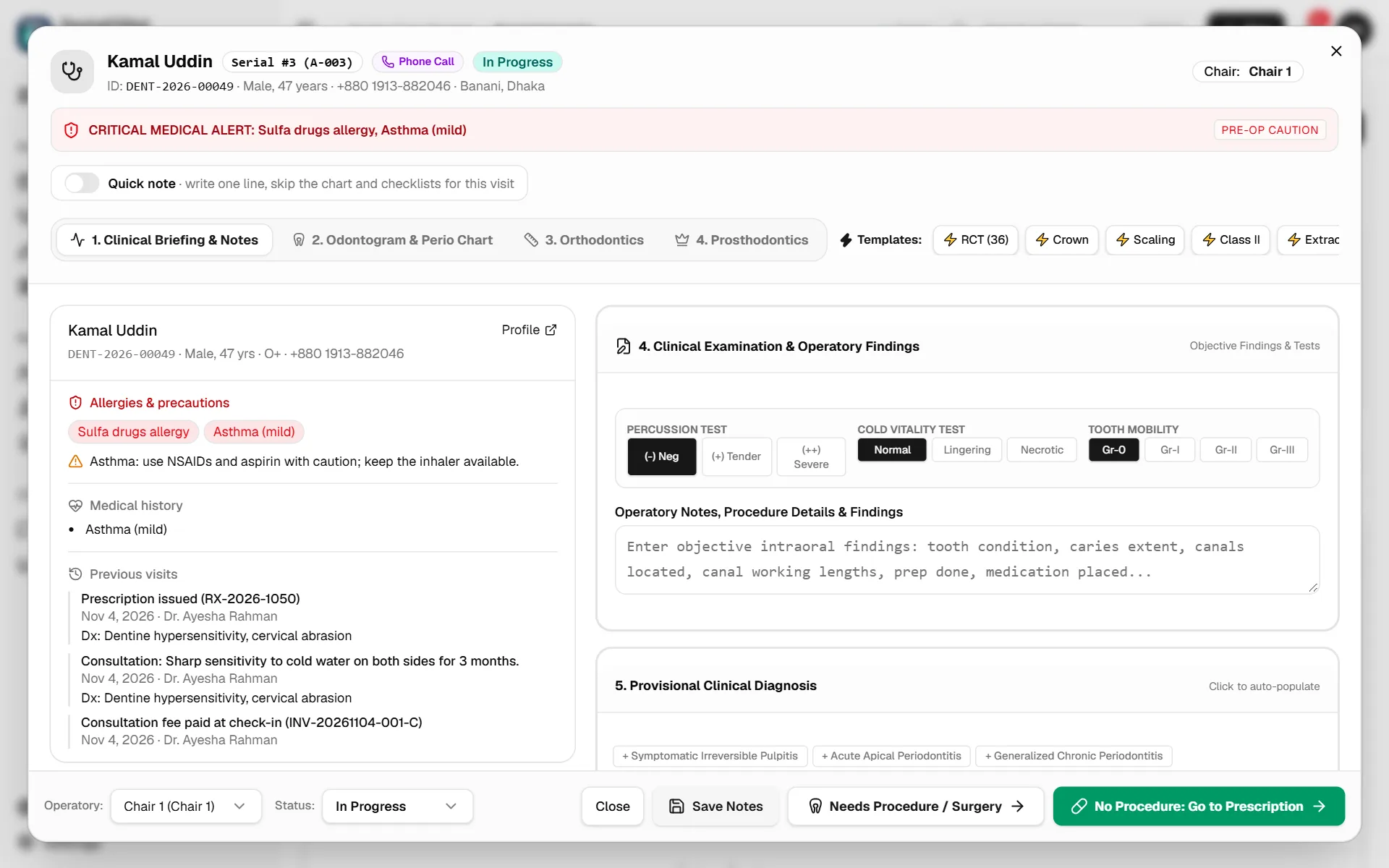
- The visit opens with the patient's details at the top and any medical alert in red. On the right are their allergies, medical history and previous visits.
- In Clinical Briefing & Notes, record:
- the target tooth (FDI number) and pain level
- the patient's complaint in their own words
- symptoms, by clicking the chips (for example Pain upon Chewing)
- X-rays, OPGs, photos or lab reports: click to upload images or PDFs
- vitals (blood pressure, pulse, blood sugar, temperature)
- findings: percussion, cold test, mobility, and your notes
- the provisional diagnosis (click a common one or type your own)
- tests or X-rays needed
- The other tabs hold the Odontogram & Perio Chart, Orthodontics and Prosthodontics for this patient, if they are switched on for your clinic.
- For a short visit, use Quick note to write one line and skip the rest. The Templates (for example RCT, Scaling, Extraction) fill in common notes in one click.
- Finish with one of:
- Save Notes: keep the notes and come back later
- Needs Procedure / Surgery: go to Examination & Procedure to add the treatment done
- No Procedure: Go to Prescription: straight to Prescriptions
If the AI Assistant is turned on for your clinic and you have a seat, an AI Assistant tab can suggest diagnoses and treatment from your notes, for you to accept or ignore.
No-shows
- Click No Show on a booking to mark it.
- Patients who haven't checked in three hours after their time are marked as no-shows automatically.
- No-shows are listed under the No Shows tab, where you can rebook them.
Tip: Call or message no-shows the same evening, while they still remember.
Online bookings
Patients who book through your online booking page appear in the serial with the channel Online Booking. They are checked in like everyone else when they arrive. To get your booking link for Facebook, Google or your website, see Clinic settings. The Public Booking link at the bottom of the app's menu opens your booking page.
Other days
Use the left and right arrow keys to move between days: see who is coming tomorrow, or who was missed yesterday.
Still stuck?
Tell us what you were trying to do and what happened. A screenshot helps.