
Settings: Clinic
Your clinic's details, logo, hours, doctors and chairs; your online booking link; the patient ID format; which clinical sections are switched on; and patient privacy between doctors.
The Clinic group in Settings holds the details that appear on everything you print, and the switches that shape how the app works for your clinic. Open Settings from the bottom of the menu. The Clinic group is at the top of the Settings menu.
Clinic Setup
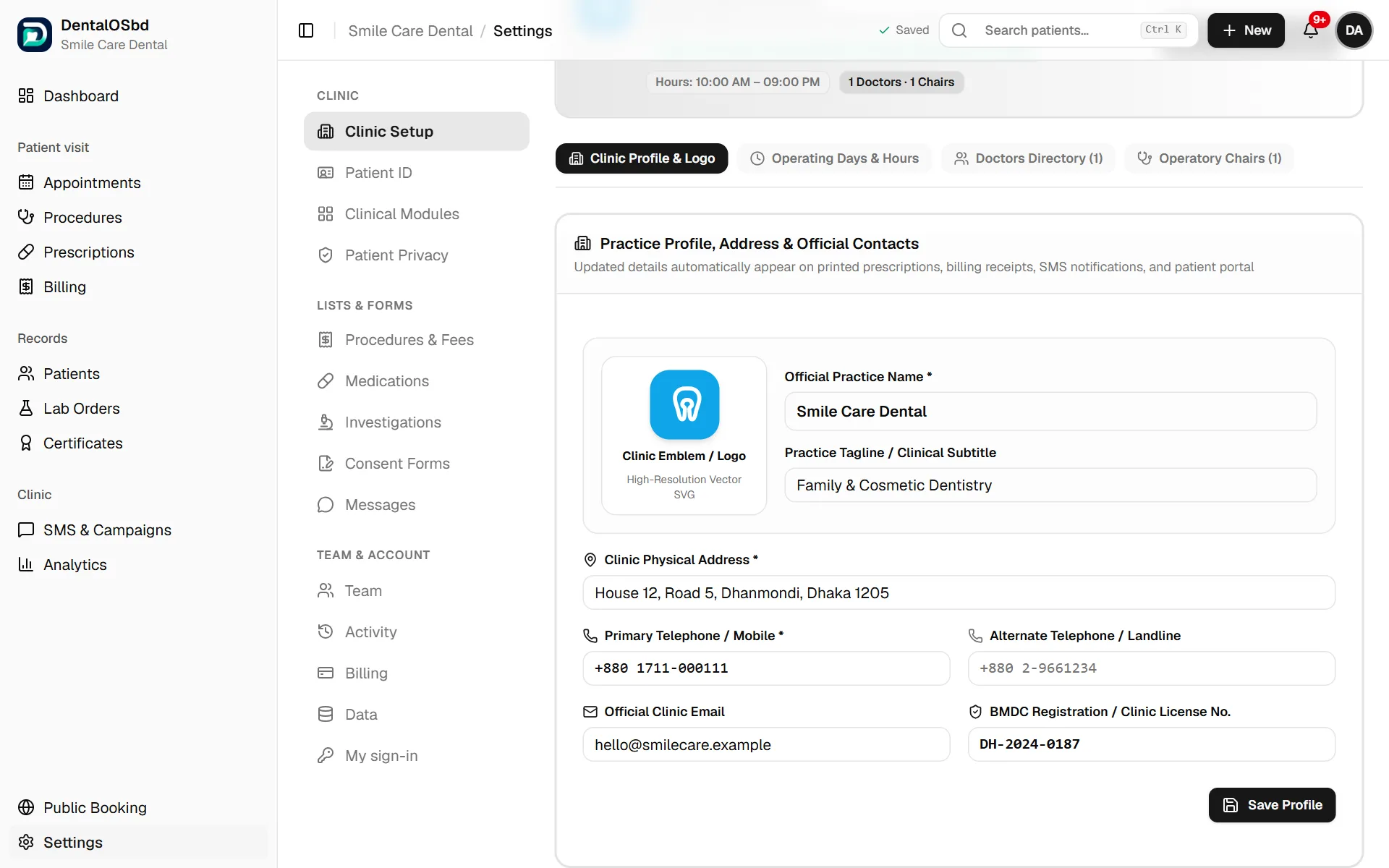
Click a section to open it, and save each one when you're done.
Clinic Profile & Logo
The clinic's name, tagline, address, phone numbers, email and BMDC registration or clinic licence number, plus the logo. These print on prescriptions, receipts, consent forms and certificates, and appear in patient messages.
Operating Days & Hours
The days the clinic is open, the opening and closing time, and the break. Bookings suggest times inside these hours.
Doctors Directory
Add each doctor with their name, degrees, designation, BMDC registration number, specialisation and visiting hours. These print on the doctor's prescriptions and certificates, so check them carefully. Mark a doctor inactive when they stop seeing patients.
Operatory Chairs
Each chair (or room), with its name and the doctor who usually works there. The Dashboard shows who is in each chair.
Online booking
At the top of Clinic Setup is your clinic's booking link. Patients who use it pick a date and time, and their booking appears in your serial on its own. Use Copy link and put it where patients find you:
- Facebook page: Edit → add a Book now button → Link to website → paste the link.
- Google Business Profile: Edit profile → Contact → Appointment links → paste the link. A booking button appears on Google Search and Maps.
- Your website: add a button that links to it, or paste the embed code where the booking form should appear.
Patient ID
Here you choose how new patients are numbered. Options include:
- Compound, for example DENT-2026-00042, which restarts each year
- Simple running number, for example 000042
- Clinic code + number, for example SCD-00042
- Initials + number, Phone digits + number, date-based formats, a Random code
- Your own format, built from parts such as
{YYYY}and{SEQ:5}
The Next patient ID preview shows what the next one will look like. Existing patients keep their IDs; the new format applies to patients registered after you save.
Clinical Modules
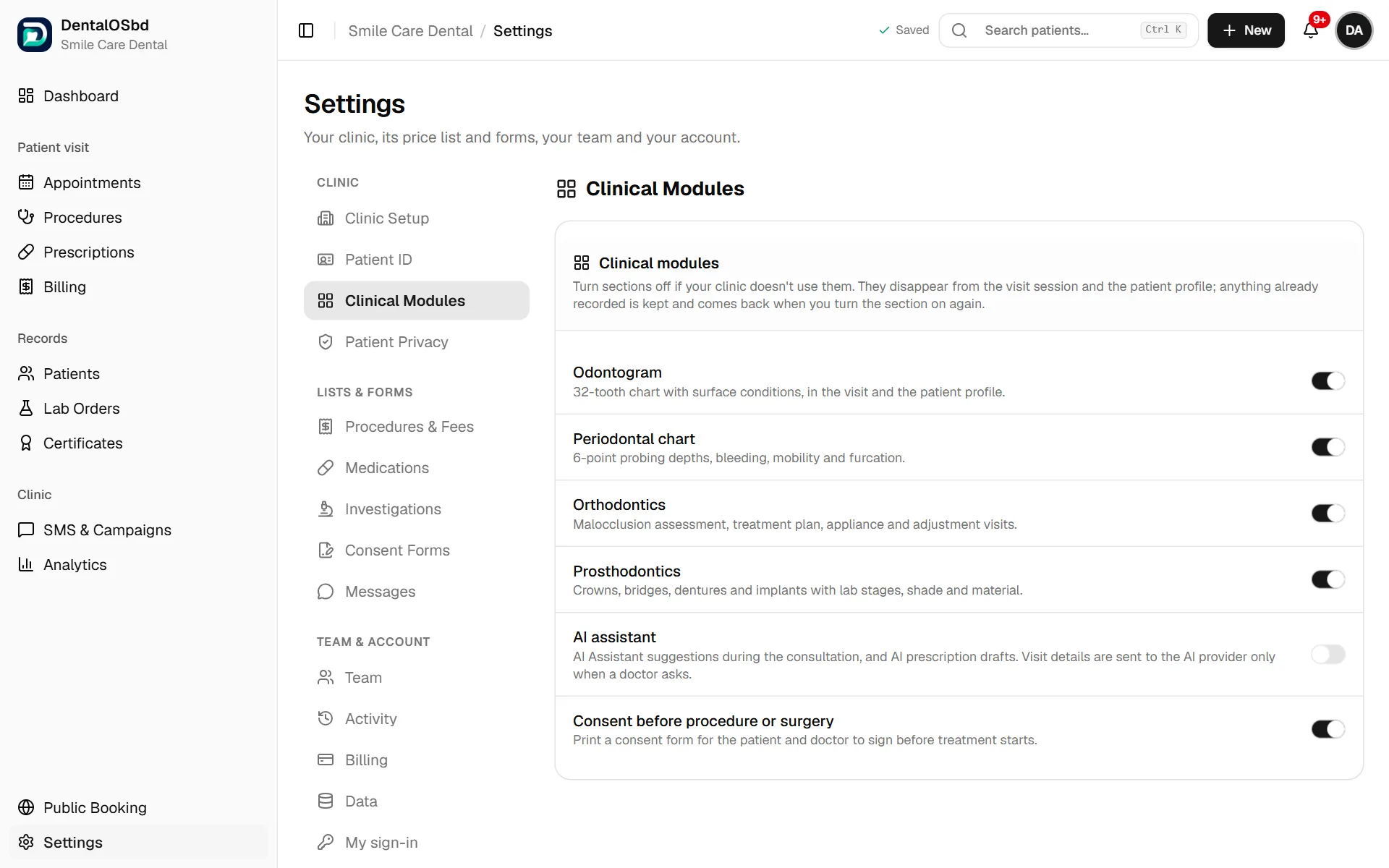
Switch off the sections your clinic doesn't use, so they don't clutter the visit and the patient file:
- Odontogram: the 32-tooth chart
- Periodontal chart: six-point probing
- Orthodontics: assessment, plan, appliance and adjustment visits
- Prosthodontics: crowns, bridges, dentures and implants with lab stages
- AI assistant: suggestions during the consultation and AI prescription drafts. Visit details are sent to the AI provider only when a doctor asks.
- Consent before procedure or surgery: the consent step before treatment
Switching a section off hides it. Anything already recorded is kept, and comes back when you switch it on again.
Patient Privacy
When Keep each doctor's patients private is on, each doctor sees full clinical details only for patients they have treated (and new patients no doctor has seen yet). For another doctor's patient they see the name and contact details, and can ask that doctor for access. Access lasts until the doctor removes it.
Who sees what:
- Front desk: booking, check-in and billing only, always. Clinical notes, charts, prescriptions and consent forms never reach their screens.
- Doctors: everything for their own patients. With privacy on, they see only contact details for other doctors' patients until access is given.
- Clinic owner: turns privacy on or off, and sees billing for every visit so the collections report stays complete.
Requests from other doctors for your patients appear on this page, for you to allow or refuse.
Still stuck?
Tell us what you were trying to do and what happened. A screenshot helps.