
SMS & Campaigns
Approve reminders for patients who missed their planned treatment, send SMS or WhatsApp campaigns to chosen patients, read replies and see every message sent.
This screen brings patients back: reminders when a planned treatment is overdue, and campaigns to groups of patients you choose. It has four tabs: Reminders, Inbox, Campaign and Message log.
Before you send anything, choose how SMS are sent in Settings → Messages (see Lists & forms).
Reminders
When a doctor plans a next treatment on the prescription (for example "Crown on 46 by 10 December") and the patient hasn't come back by then, DentalOSbd drafts a reminder. It doesn't send it on its own.
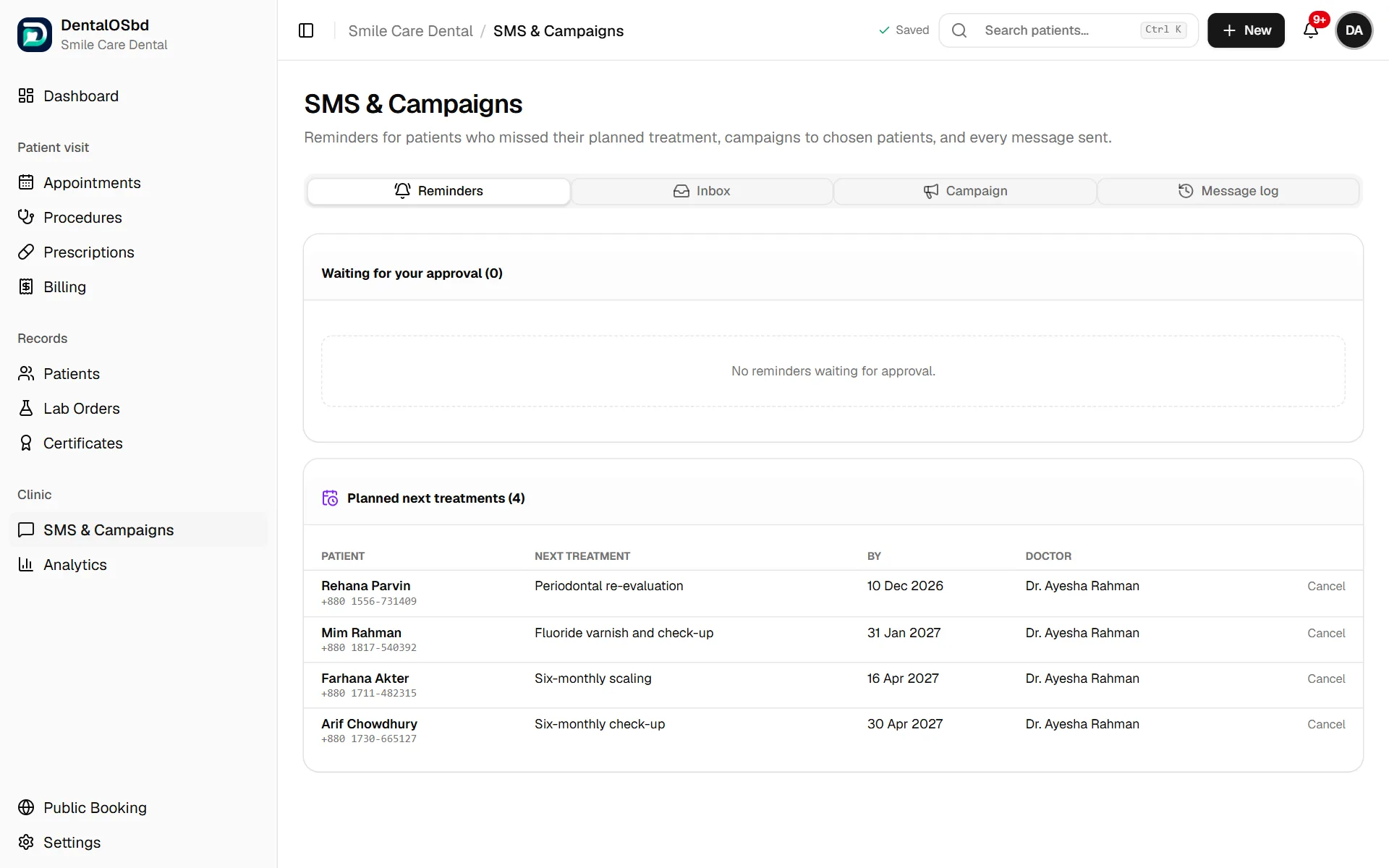
- Waiting for your approval: drafted reminders. Read each one, change the wording if needed, choose SMS or WhatsApp, then click Approve & send or Dismiss. Only doctors can approve reminders.
- Planned next treatments: everything planned, with the date and the doctor. Cancel removes a plan that's no longer needed, for example if the patient had it done elsewhere.
How many days after the planned date a reminder is drafted, and its wording, are set in Settings → Messages.
Campaigns
Send one message to a group of patients: a check-up reminder, a gum-care message for diabetic patients, Eid greetings, and so on.
Open the Campaign tab.
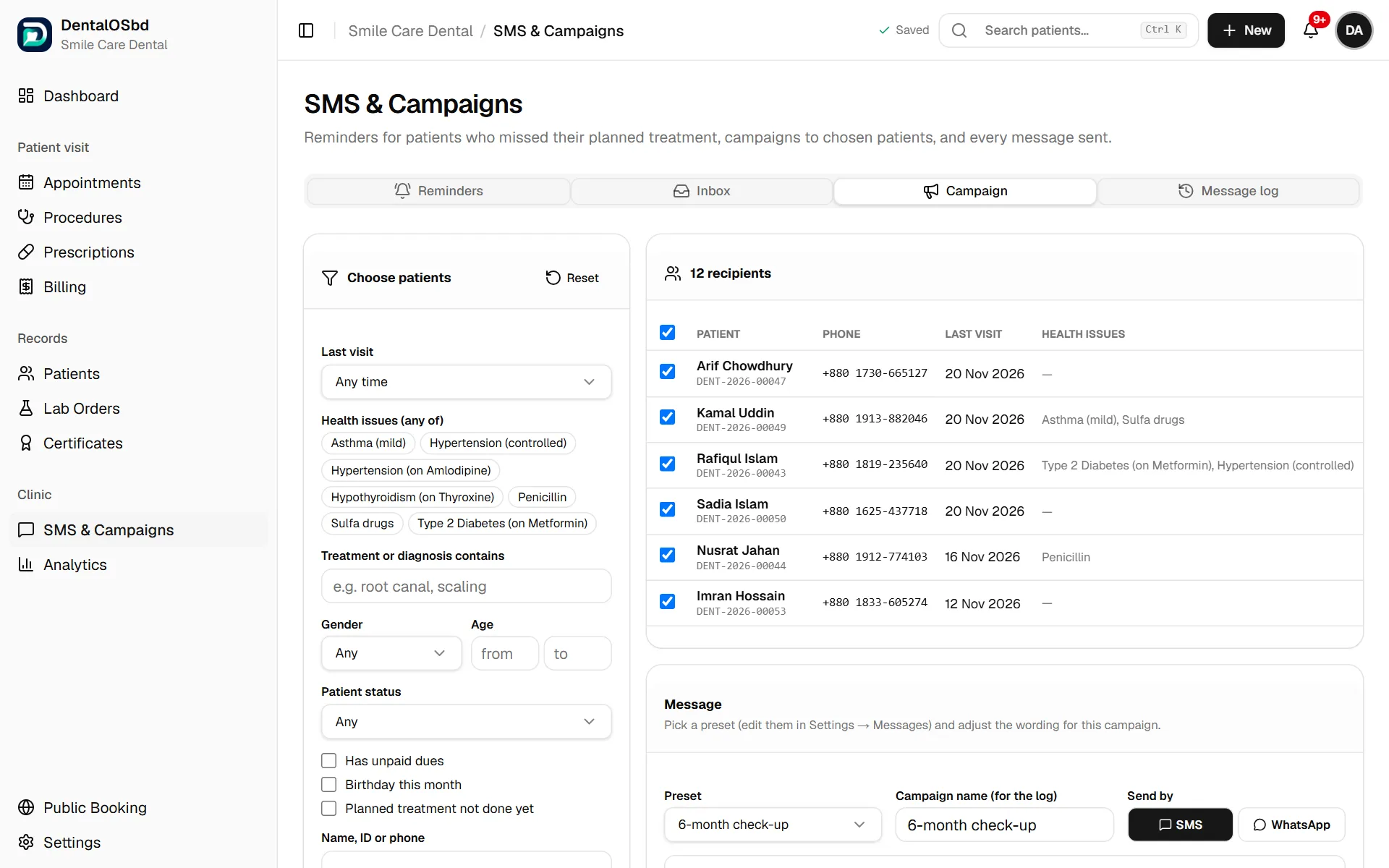
Choose patients using any mix of filters:
- Last visit
- Health issues, for example Type 2 Diabetes
- Treatment or diagnosis contains, for example RCT
- Gender, Age and Patient status
- Has unpaid dues, Birthday this month or Planned treatment not done yet
- Name, ID or phone
The number of recipients updates as you go. Untick anyone you want to leave out.
Pick a Preset message (for example 6-month check-up) and change the wording for this campaign if you like.
Give the campaign a name for the log, and choose Send by: SMS or WhatsApp.
Click the {{…}} fields to insert details that fill in for each patient, such as
{{first_name}},{{clinic_phone}}or{{booking_link}}.Check the Preview. It shows the character count and how many SMS each message will use.
Click Send to ….
Tip: A Bangla SMS holds only 70 characters (an English one holds 160), so a Bangla message often takes two SMS. Keep messages short and watch the count in the preview.
Inbox
When SMS are sent from the clinic's Android phone, patients' replies arrive here, matched to the patient. Replies don't come back when sending through an SMS company or Windows Phone Link.
Message log
Every message sent, with the patient, the time and how it was sent.
WhatsApp messages open in the clinic's own WhatsApp (on WhatsApp Web or the WhatsApp app on that computer) with the text already written. You press Send in WhatsApp for each one.
Still stuck?
Tell us what you were trying to do and what happened. A screenshot helps.