
Dashboard
The day at a glance, covering today's appointments, the money collected, outstanding dues, who is in the chair and who is waiting.
The Dashboard is the first screen after you sign in. It answers the questions people ask most during the day: how many patients are coming, who is in the chair, who is waiting, and how much has been collected.
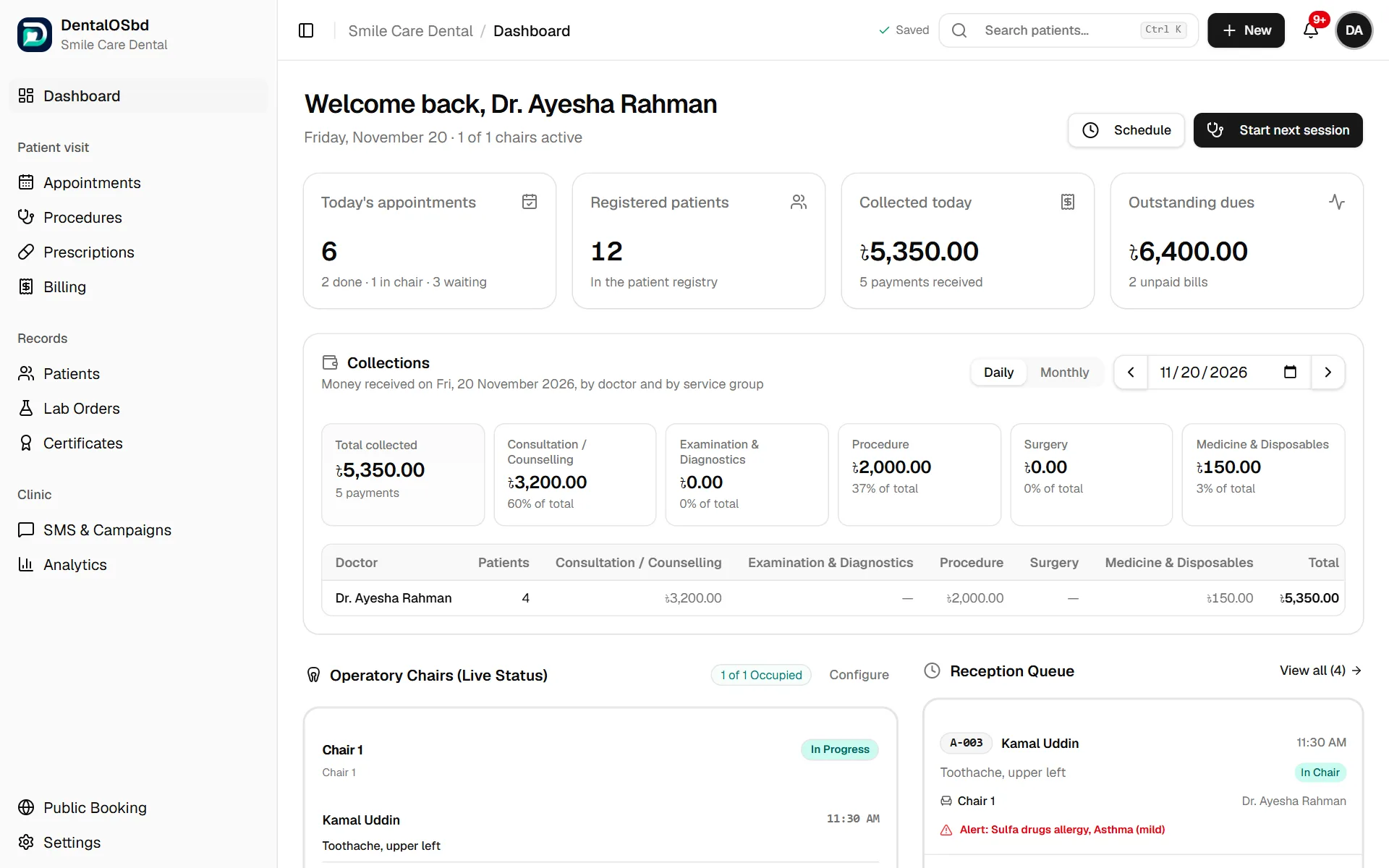
The four numbers at the top
- Today's appointments: how many patients are booked today, and how many are done, in the chair and waiting.
- Registered patients: everyone in your patient list.
- Collected today: all payments received today, with the number of payments.
- Outstanding dues: money still owed by patients, across all their unpaid bills.
Collections
Shows the money received, split by doctor and by type of work: consultation, examination and diagnostics, procedures, surgery, and medicines and disposables. Switch between Daily and Monthly to see one day or a whole month. This is the table to use for doctors' fee shares and for checking the day's cash.
Chairs
Each chair shows the patient in it, the reason for the visit, the doctor and how long they have been seated. Open Chairside Session takes the doctor straight into that patient's visit.
Reception Queue
The next patients for today in serial order, with their token number, time, reason, status (not arrived, checked in, in chair) and any medical alert such as an allergy. View all opens the full list on the Appointments screen.
Quick buttons
- Start next session: opens the visit of the next patient who is waiting.
- Add Patient and New Invoice at the bottom of the queue.
Finding a patient from anywhere
The Search patients box at the top of every screen finds a patient by name, phone number or patient ID. Press Ctrl K on a keyboard to jump to it.
Tip: The word Saved at the top of the screen shows that everything you've entered has reached the server. If the internet drops, it changes to show that changes are waiting. They are sent automatically when the connection comes back.
Still stuck?
Tell us what you were trying to do and what happened. A screenshot helps.