
Settings: Team & account
Invite staff and set their roles, see who did what, pay for your subscription, download or bring in your data, and secure your own sign-in.
The Team & account group in Settings is mostly for the clinic owner. Team, Activity and Billing are only shown to owners.
Team
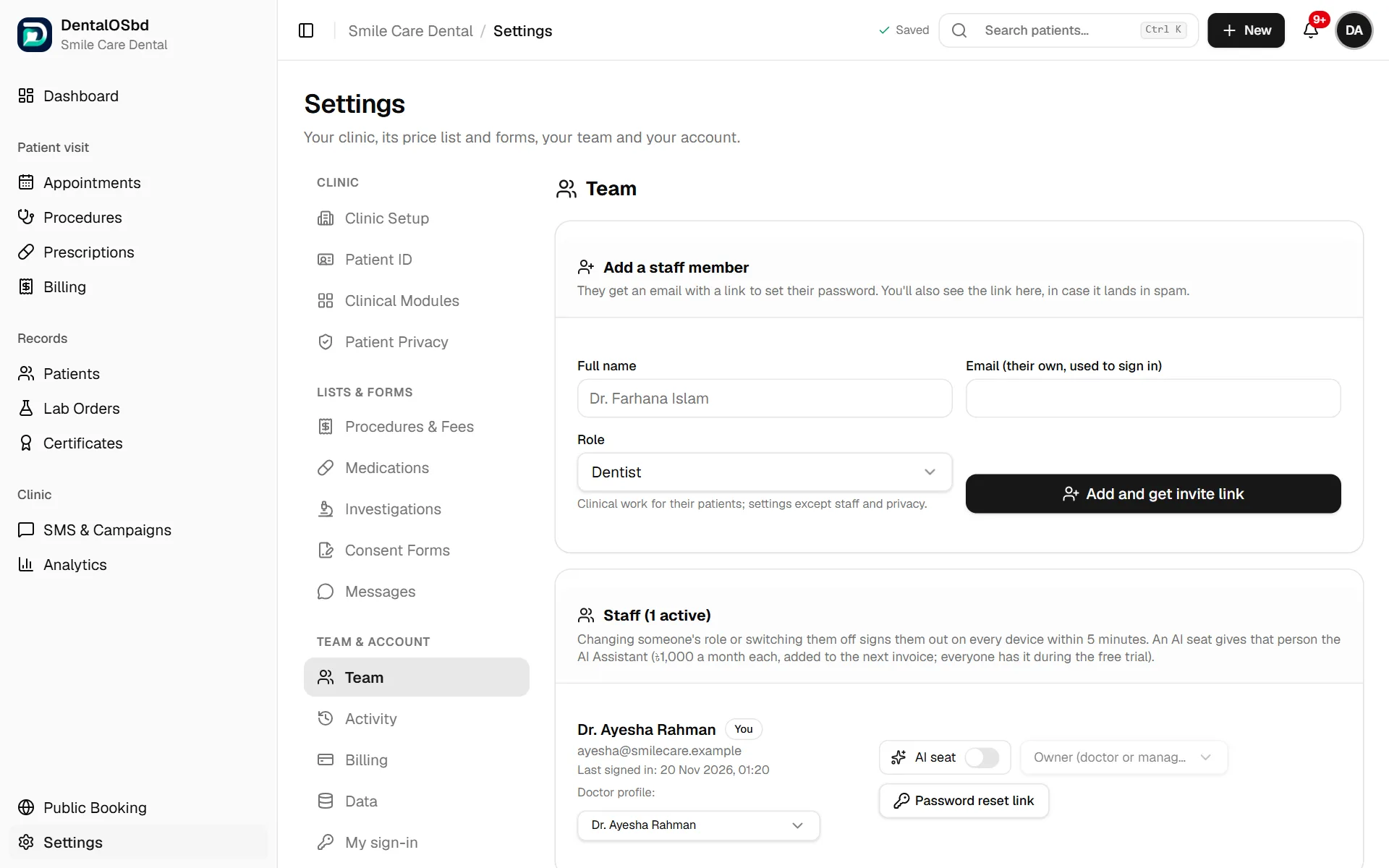
Add a staff member
- Enter their Full name and Email. This should be their own email, which they will use to sign in.
- Choose their Role:
- Owner (doctor or manager): everything, including settings, staff and patient privacy
- Dentist: clinical work for their patients, and settings except staff and privacy
- Hygienist / assistant: clinical work alongside the doctors
- Front desk: check-in, appointments, patients' contact details and billing only
- Click Add and get invite link.
They get an email with a link to set their password. The link is also shown on screen. If the email lands in spam, copy the link and send it on WhatsApp.
Manage staff
The staff list shows each person's role and when they last signed in.
- Change a role or switch someone off when they leave. They are signed out on every device within five minutes, and their past work stays in the records.
- Doctor profile: links a doctor's sign-in to their entry in the doctors list in Clinic Setup, so DentalOSbd knows which patients are theirs (this matters for patient privacy) and suggests them as the signing doctor.
- AI seat: gives that person the AI Assistant. Each seat costs ৳1,000 a month, added to the next invoice. Everyone has it during the free trial.
- Password reset link: makes a new link for someone who forgot their password.
Activity
A log of sign-ins, staff changes, every saved change to the clinic's records, and who opened which patient's profile, visit or prescription: who did it, when, and from which internet address. It records which records changed, not what the changes were. Use it to check what happened if something looks wrong.
Billing
Your DentalOSbd subscription: your plan, whether it's paid, until when, and how many AI Assistant seats you have.
To renew or change plan:
- Choose the plan and Monthly or Yearly. Yearly gets 2 months free.
- Click Get the invoice.
- Pay it in one of the ways shown:
- Online, if offered: card, bKash, Nagad, Rocket or net banking. The clinic is updated straight away.
- By bKash: send the amount with the invoice number as the reference, then send us the transaction ID. We mark it paid within one working day.
The new period starts when the current one ends. Past invoices are listed underneath.
Data
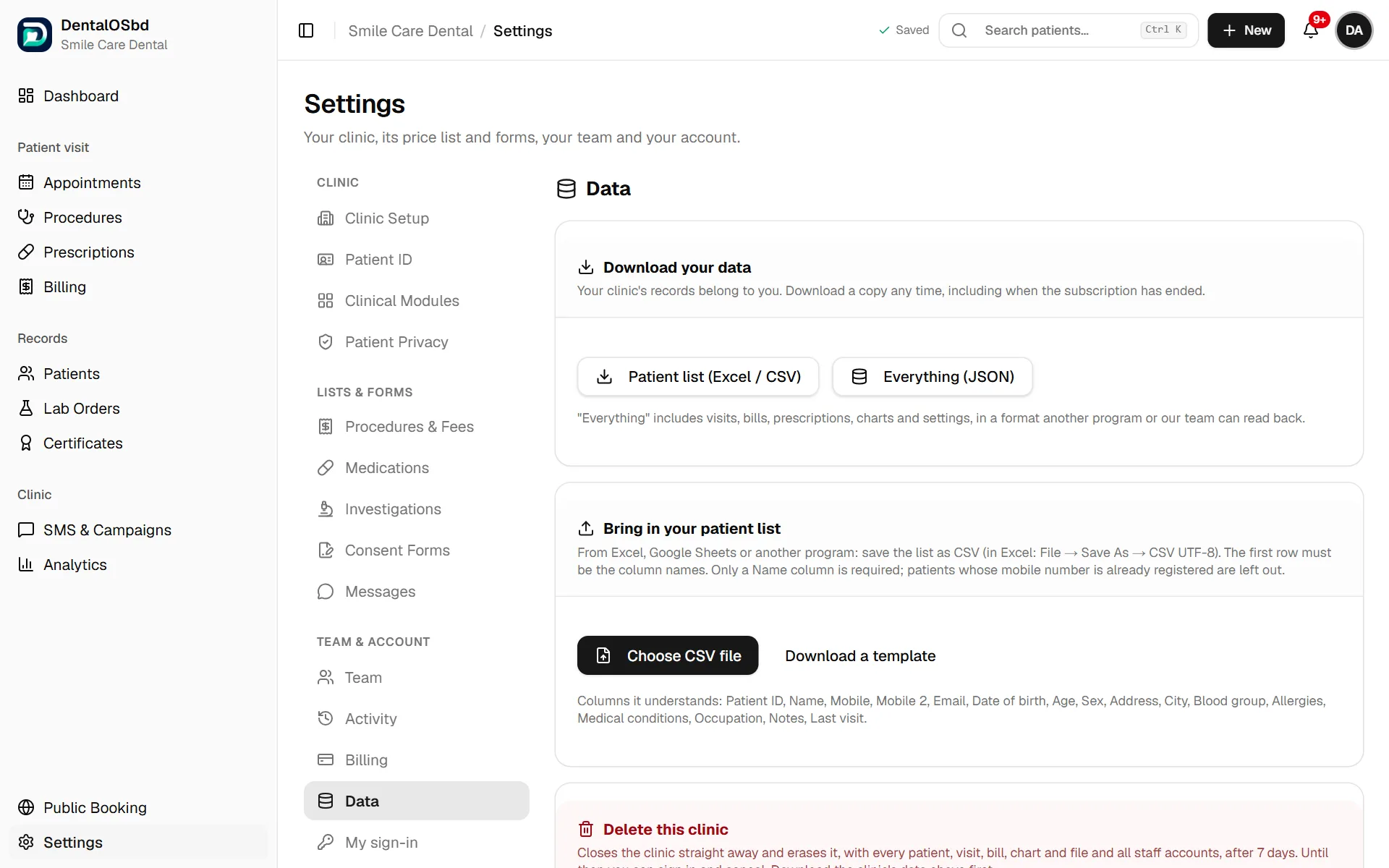
Download your data
Your clinic's records belong to you. Download a copy at any time, including after the subscription has ended:
- Patient list (Excel / CSV): opens in Excel or Google Sheets
- Everything (JSON): visits, bills, prescriptions, charts and settings, in a format another program, or our team, can read back
Bring in your patient list
- In Excel, save your list as CSV: File → Save As → CSV UTF-8. The first row must be the column names. Only a Name column is needed.
- Click Choose CSV file. Patients whose mobile number is already registered are left out, so nobody is added twice.
- Check the preview, then bring them in.
Columns it understands: Patient ID, Name, Mobile, Mobile 2, Email, Date of birth, Age, Sex, Address, City, Blood group, Allergies, Medical conditions, Occupation, Notes and Last visit. Download a template gives you a sheet with the right columns.
Delete this clinic
Closes the clinic straight away, and erases it after 7 days, with every patient, visit, bill, chart, file and staff account. Until then you can sign in and cancel. Download your data first.
My sign-in
Your own account. Everyone can open it from the menu under their name (My sign-in (2-step)).
- 2-step sign-in: after your password, DentalOSbd also asks for a 6-digit code from an app on your phone (such as Google Authenticator), so a stolen password alone can't open your patients' records. It's optional, and we recommend it for owners.
- Delete my account: removes your own sign-in. If you are the clinic's only owner, first make another team member an owner in Team, or delete the whole clinic from Data.
Still stuck?
Tell us what you were trying to do and what happened. A screenshot helps.