
Billing
Take payment for a visit by cash, bKash, Nagad or card, give a discount, keep part payments as dues, collect old dues and give refunds.
The bill is built from the visit: the consultation, the examinations and procedures the doctor added, and the medicines and disposables used, each priced from your fee list. The front desk only has to take the money.
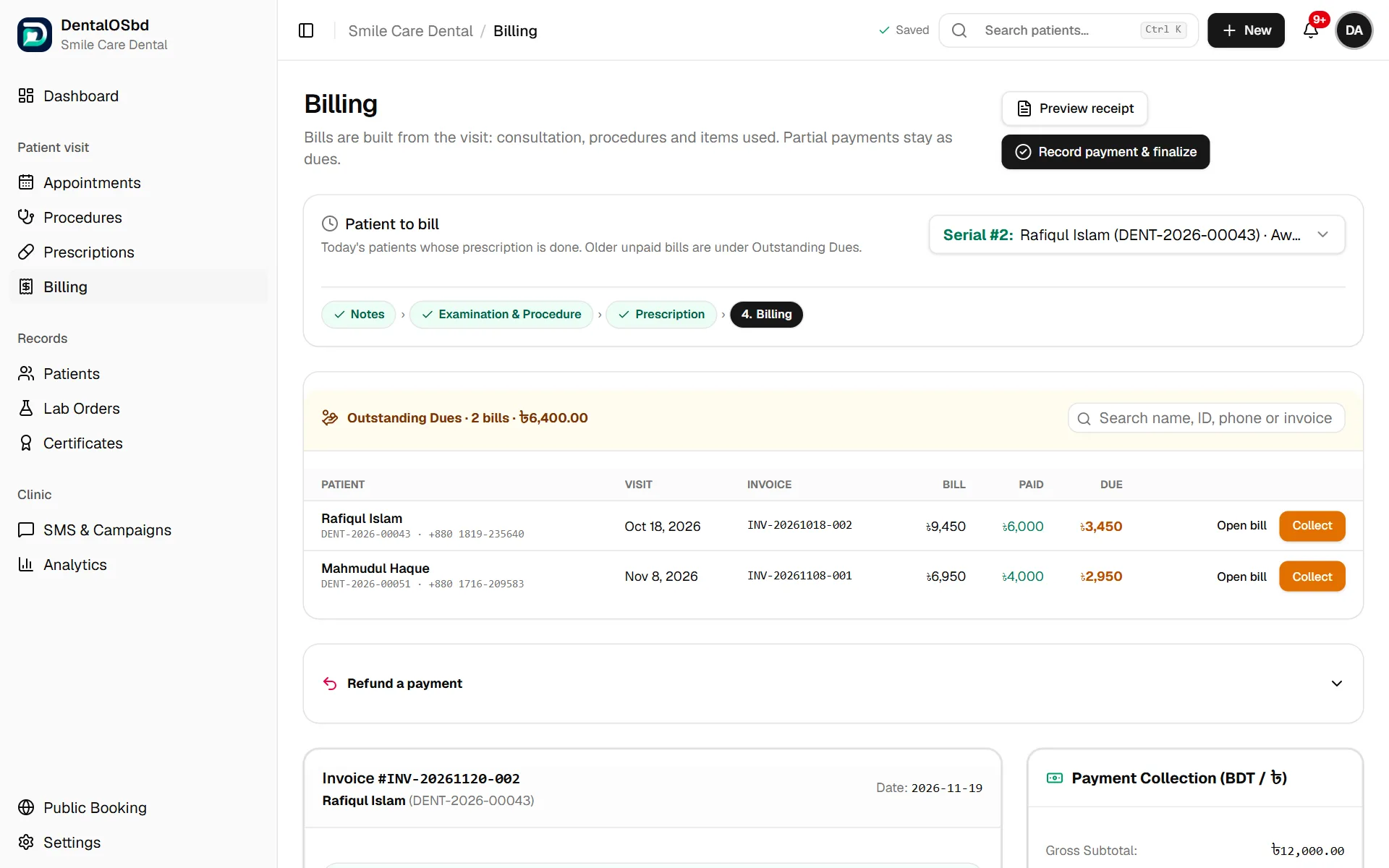
Take payment for today's visit
- Under Patient to bill, choose the patient. The list shows today's patients whose prescription is done.
- Check the items. If the consultation fee was paid at check-in, the bill says so and covers only the other charges.
- Need to add something? Use Add Additional Procedure / Service.
- To give a discount, choose Percent (%) or Fixed (৳) under Discount & Concessions and enter the amount.
- Choose how the patient pays: bKash, Nagad, Card POS or Cash BDT. For bKash and Nagad, enter the Transaction ID (TrxID) from the patient's confirmation SMS.
- Enter the Amount Received, or click Pay Full.
- Click Collect Payment & Complete Visit. Print the receipt with Preview receipt. Receipts print two to a page, one for the patient and one for your records.
Tip: Recording the bKash or Nagad transaction ID lets you check each payment against your merchant statement at the end of the day.
Part payments and dues
If the patient pays less than the bill, the Remaining Balance Due stays on their file as a due. You don't need to write it down anywhere else.
All unpaid bills are listed under Outstanding Dues, with the bill, what's been paid and what's left. The patient's balance also shows in the patient list and on their profile.
Collect an old due
- Find the patient under Outstanding Dues (or on their profile).
- Click Collect.
- You'll see the bill total and the payments so far. Enter the Amount received and the Method (with the Transaction ID for bKash or Nagad), then save. They get a fresh receipt for this payment.
Open bill shows the original bill.
Give a refund
- Click Refund a payment.
- Find the payment (search by name, ID, phone or invoice) and click Refund.
- Enter the Amount to refund, how it was Paid back by (with the transaction ID for bKash or Nagad), and the Reason.
- Click Refund … & print voucher. The voucher prints in a patient copy and an office copy.
Refunds are taken off the day's collections in the Dashboard report.
Prices
Prices come from Settings → Procedures & Fees. Change a price there and every new bill uses it. Bills already made keep the price they were made with. See Lists & forms.
Still stuck?
Tell us what you were trying to do and what happened. A screenshot helps.